MMMinternet
HOME  |  ホスティングサーバ  |  レンタルサーバ  |  ウイルスチェック  |  接続サービス  |  アクセスポイント  |  カスタマーサポート  |  FAQ  |  会社概要
img
MENU
sp
≫ホスティングサーバ
≫レンタルサーバ
≫ドメイン取得代行
≫ウイルスチェック
≫接続サービス
≫アクセスポイント

line
≫各種申請書
≫資料請求
≫カスタマーサポート
≫メンテナンス情報
≫障害情報
≫配信制限について
≫よくあるご質問
├全般

├メール
└ホームページ
line
≫サイトマップ
line
≫消費税表示について
≫個人情報について
≫会社概要
sp
MMMインターネット
[お問合せはこちら]
〒171-0022
東京都豊島区南池袋2丁目49-7
池袋パークビル

E-mail:info@ksmplus.ne.jp
JPRS指定事業者
JPRS指定事業者
社団法人  日本インターネットプロバイダー協会
社団法人
日本インターネット
プロバイダー協会
【  Incoming mail port number setting  】
※2008/3/27  6:00〜
≫ Outlook Express 6.0
≫ Outlook Express 6.0[Japanese]
≫ Outlook Express 6.0[PDF] GetAdobeReader

Information
Display name Any
E-mail address E-mail address(****@po.mmm.ne.jp)
Account name E-mail address "@" at left-hand segment
Password Shall be stated separately

Server Information Incoming mail (POP3)

po.mmm.ne.jp
Server Information Outgoing mail (SMTP) po.mmm.ne.jp

Server Port Numbers Incoming mail (POP3)

110
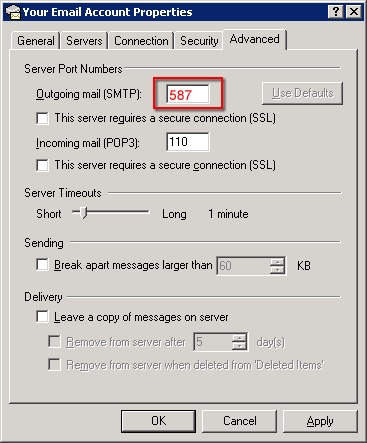
Server Port Numbers Outgoing mail (SMTP) 587


Microsoft Outlook Express 6.0 setup procedure
1.
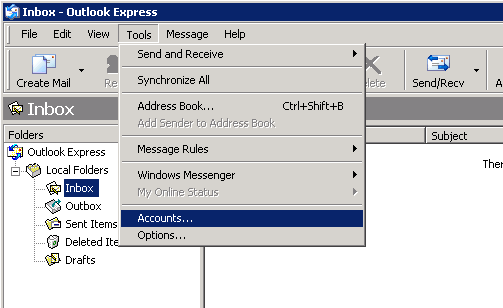
* Load Microsoft Outlook Express 6.0
* From the main screen open the the 'Tools' menu and then select 'Accounts...'
img
2.
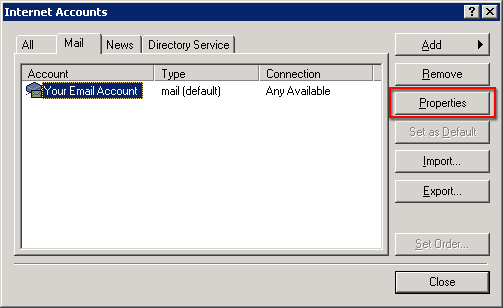
* Click on the email account to modify - this will cause it to become highlighted
* Click on the 'Properties' button
img
3.
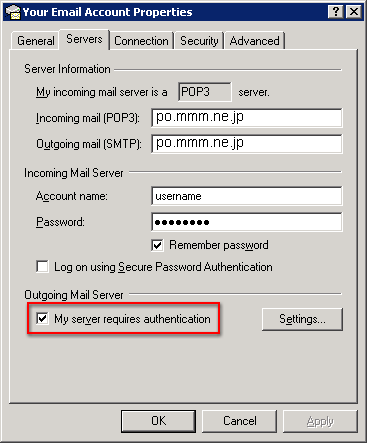
* Click on the 'Servers' tab.
* Change the 'Outgoing mail server (SMTP)' to the SMTP server we supplied with your signup email
* Tick the box next to 'My server requires authentication'
* Click on the 'Settings...' button
img
4.
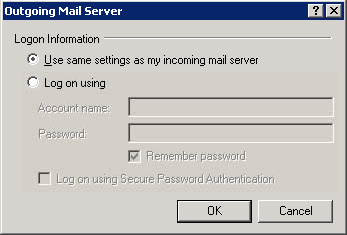
* Select 'Use same settings as my incoming mail server'
* Click the 'Ok' button
img
5.
* Click the 'Advanced' tab
* Change the 'Outgoing mail (SMTP)' port number to the alternate port (port 587 is recommended)
* 'Ok' button
img
6.Click the 'Close' button.

△Back to Pagetop
Question at info@ksmplus.ne.jp